Wordpress
When someone says “WordPress is slow”, it almost never points to a single cause.
Most of the time it’s a mix of theme code, plugins, images, fonts, hosting – plus a few “historical decisions” everyone has already forgotten.
In this note I’m not going to tell you to “just install a caching plugin”.
Instead, I’ll walk through the basic checklist I use when I start working on a slow WordPress site in 2026.
Step 1. Measure first, don’t guess
Before changing anything, I need to see real numbers.
Typically I:
Open the site in Chrome and run Lighthouse / PageSpeed Insights.
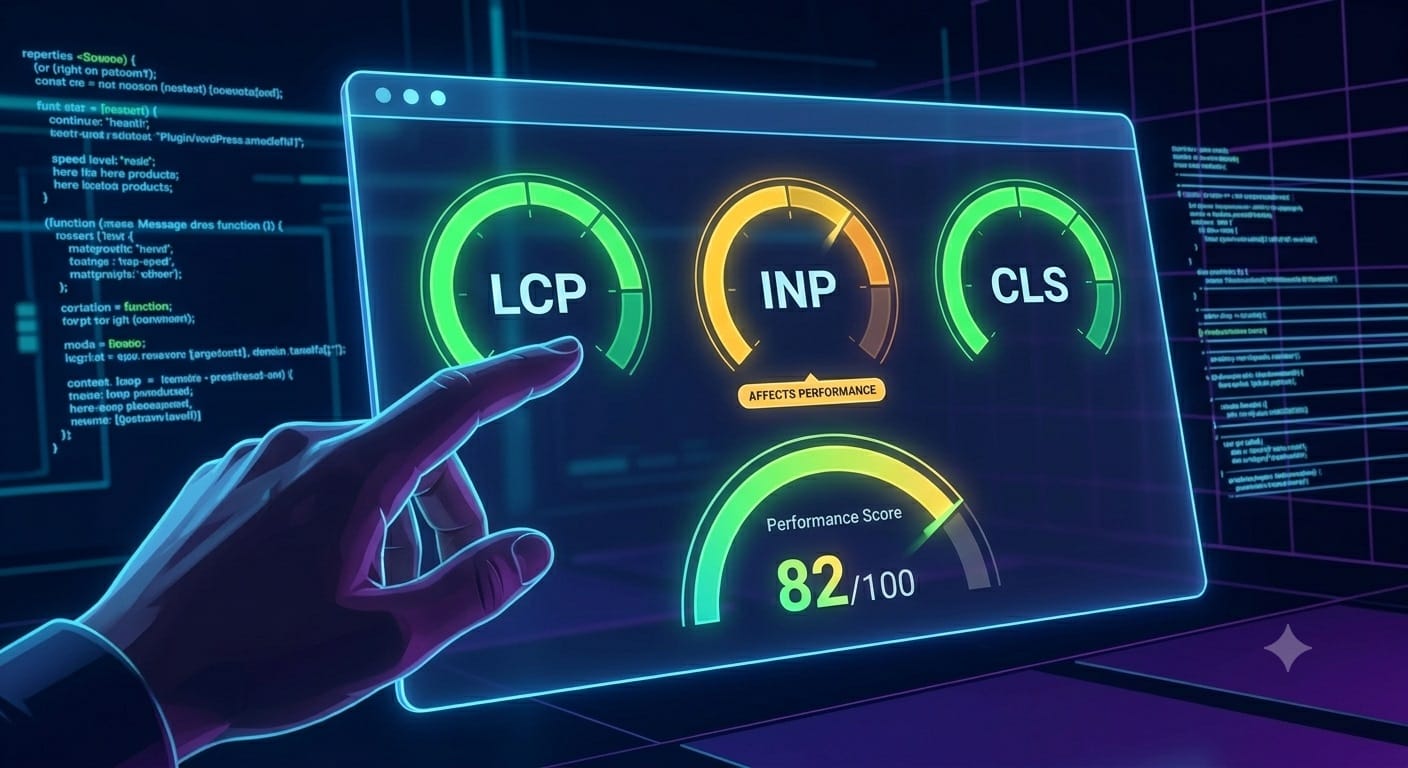
Check Core Web Vitals in Search Console for real‑user data (LCP, INP, CLS).
Look at DevTools → Network to see
how big the page is,
how many JS/CSS requests it makes,
which requests are the slowest.
The goal here is not to “hit 100/100” but to understand:
where we’re losing time before the first meaningful content (LCP);
whether heavy JS bundles are killing interaction (INP);
whether layout shifts are obvious (CLS).
Without this picture, any optimization is just guessing.
Step 2. Theme: what I check first
If Core Web Vitals look bad, the first place I look is the theme.
Things I check:
How many CSS and JS files the theme loads on a typical page.
Are there a couple of huge
theme.js/vendor.jsfiles on every view?Are there old libraries that could be removed?
Whether there are heavy animations / sliders / hero videos above the fold.
How templates are structured:
are all scripts loaded everywhere,
or can some of them be limited to specific templates?
In practice this often means:
Dequeuing unnecessary scripts via
wp_dequeue_scriptwhere they aren’t needed.Dropping a heavy hero slider and replacing it with a single static image.
Splitting one giant
main.jsinto smaller pieces and loading them conditionally.
Step 3. Plugins: who is really slowing things down
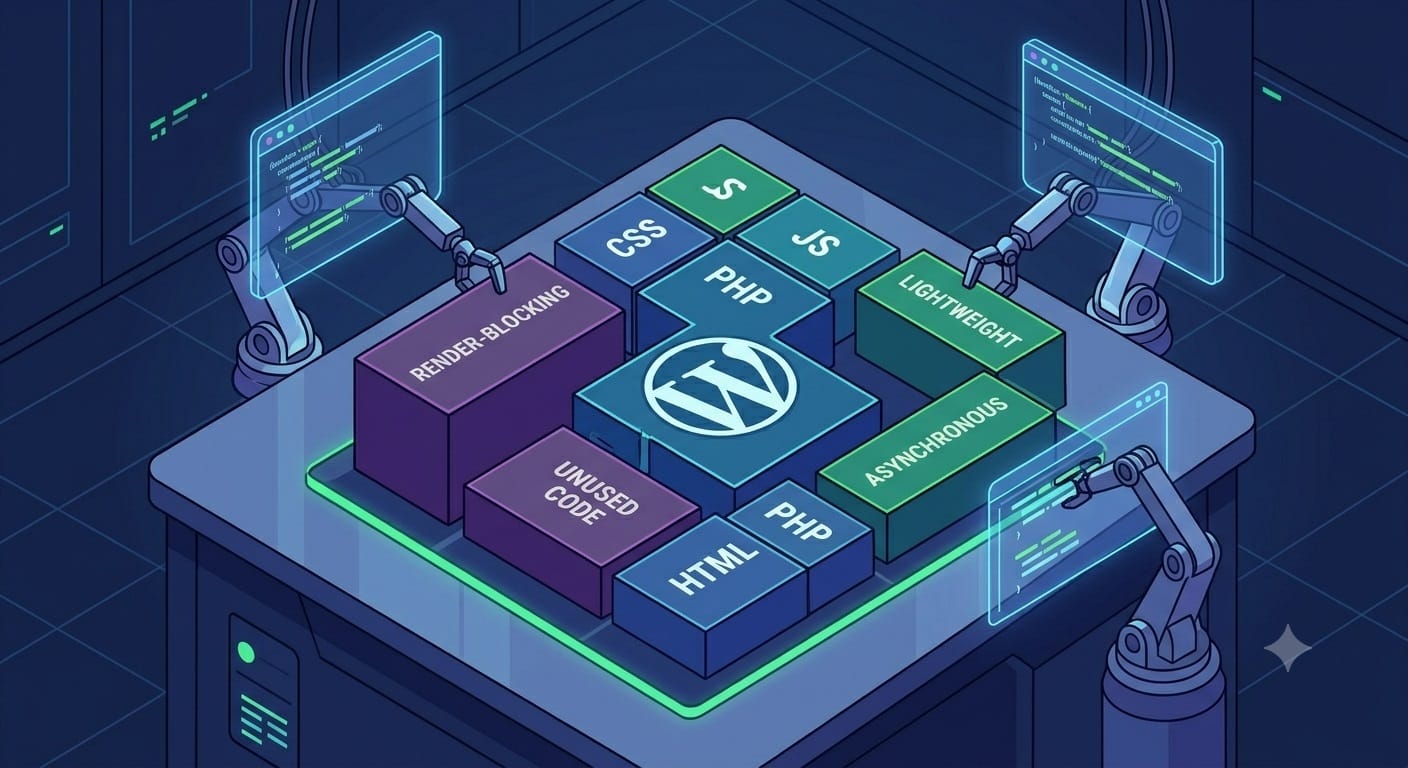
The second common source of problems is plugins.
My process looks like this:
Review the list of active plugins and immediately flag the usual suspects: big page builders, visual sliders, multiple SEO/analytics plugins.
In DevTools → Network, map JS/CSS files to plugins.
Check whether we can:
replace a “do‑everything” plugin with a lighter alternative;
disable unnecessary modules inside a plugin;
limit script loading to only the pages that actually use a feature.
Very often it’s enough to:
Drop one or two heavy “all‑in‑one” plugins;
Remove duplicates (two plugins solving the same problem);
Configure conditional loading (for example, form scripts only on pages that contain a form).
Step 4. Images, fonts, video
Even a clean theme and a reasonable number of plugins won’t save you if:
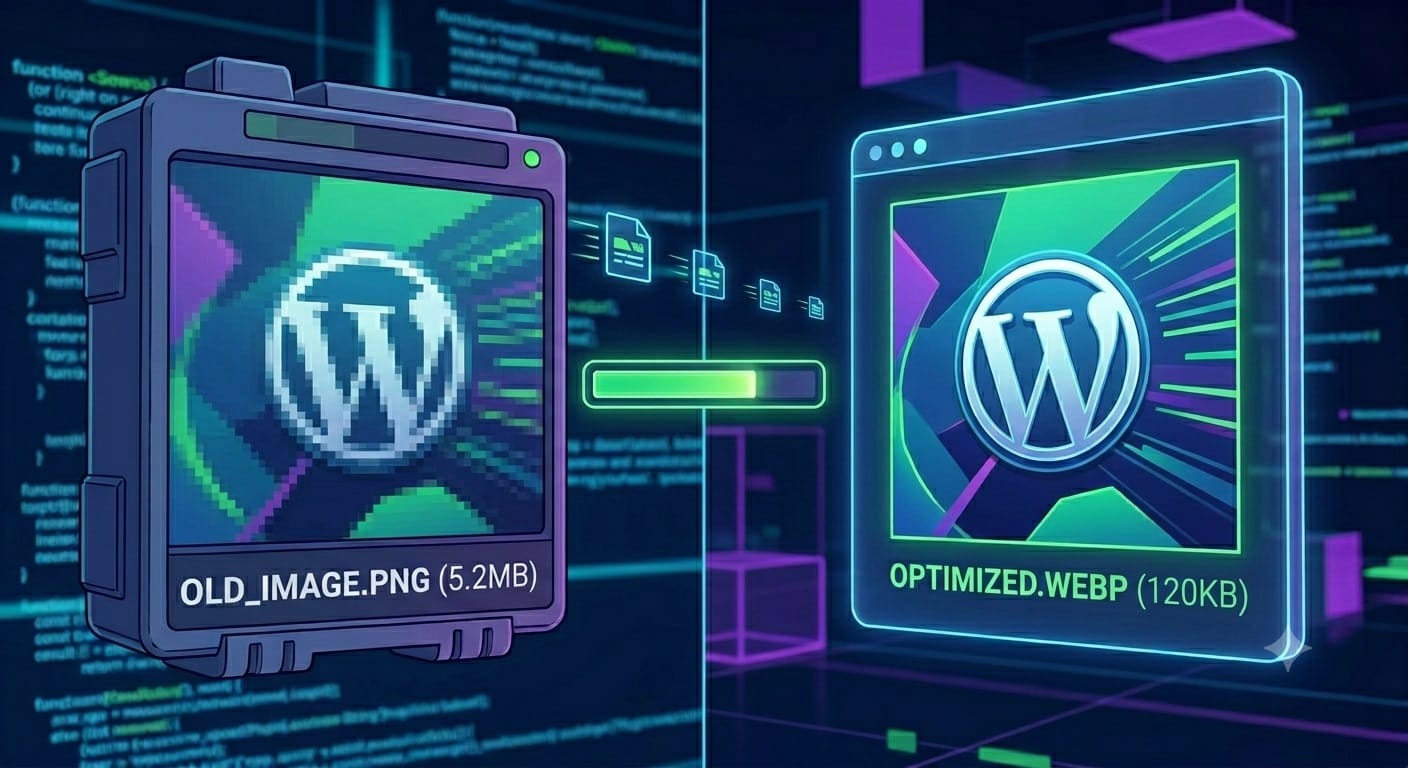
hero images are 3000 px wide PNGs straight from design;
every section uses its own full‑width background image “for aesthetics”;
the page loads 3–4 font families with lots of weight variants.
What I do here:
Identify key images (hero, cards, galleries) and optimize them:
correct width for the layout,
modern format (WebP / AVIF where possible),
proper
width/heightandloading="lazy"where it makes sense.
Review fonts:
how many families and weights are used;
whether we can stick to 1–2 good pairs instead of a zoo.
If there’s video in the hero, move it further down the page or replace it with a poster / static image.
This is one of the easiest ways to win back 0.5–1 second of LCP without deep refactoring.
Step 5. Caching, hosting, and basic hygiene
Only after themes, plugins, and media do I look at:
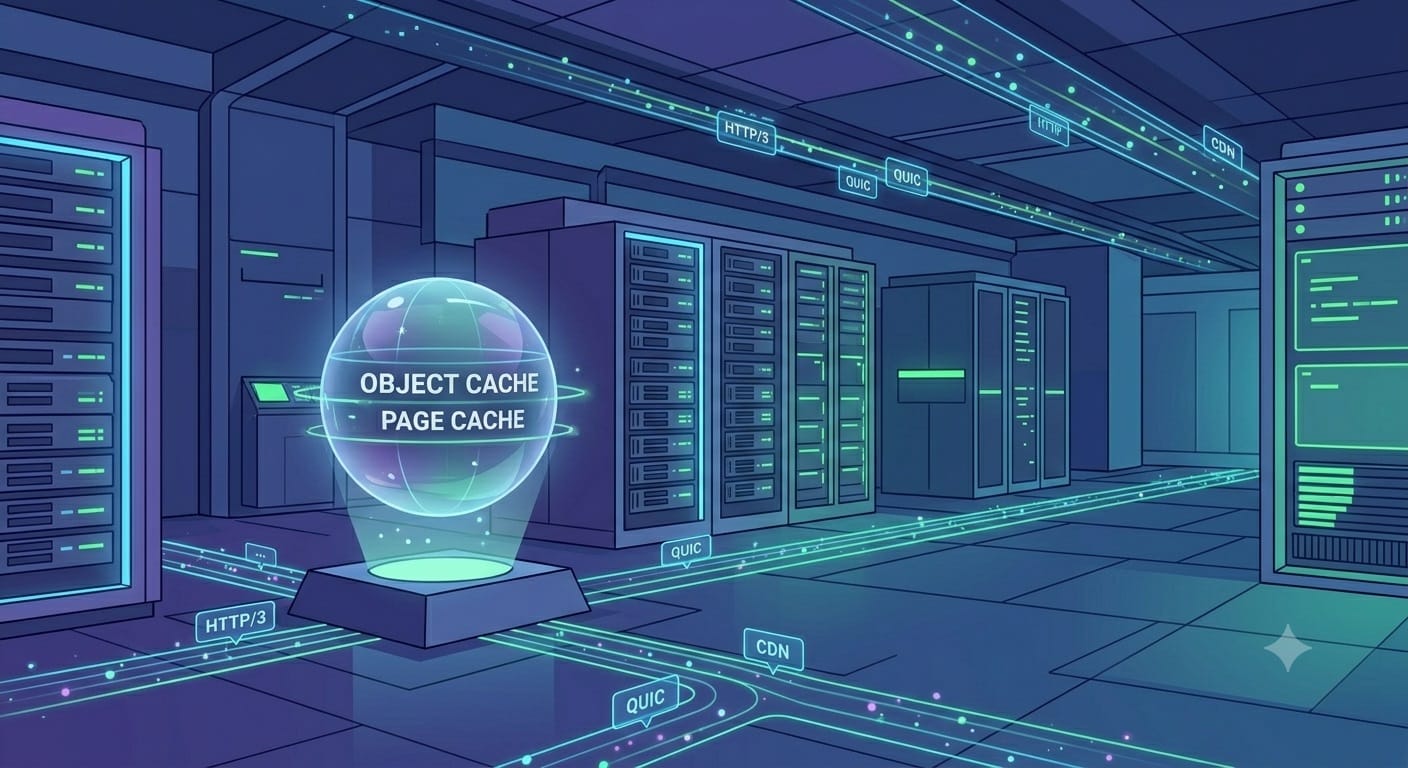
Hosting – server response time, HTTP/2 or HTTP/3 support, whether a cheap shared plan is clearly overloaded.
Caching – is there a proper page cache / object cache, are there conflicts from multiple cache plugins.
Basic WordPress hygiene – excessive revisions, autosaves, too many cron jobs, etc.
There’s no magic here: sometimes the right fix is to move to better hosting or to set up one clear caching solution instead of three overlapping ones.
Mini case study: from 3–4 seconds down to under 2
To keep this concrete, here’s a short real‑world example (without naming the client):
Page: homepage of a corporate WordPress site.
Initial state:
LCP around 3.5–4 s on mobile;
~130 requests;
heavy hero slider + several animations;
20+ active plugins.
First round of changes:
Theme
Removed the slider from the hero and replaced it with a single optimized image.
Disabled a couple of decorative animations that didn’t add real value.
Plugins
Removed one large “all‑in‑one” plugin whose features overlapped with the theme.
Moved a form from a heavy form builder to a lighter solution.
Media & fonts
Re‑exported key images as WebP at more realistic sizes.
Reduced the number of font families and weights.
Result after this basic pass:
Mobile LCP dropped to roughly 1.7–1.9 s;
total requests went down noticeably;
no extreme tricks or risky hacks were needed.
Later we tuned caching and a few smaller details, but the biggest improvement came from this simple checklist.
When the checklist is not enough
Sometimes:
the site has lived on a complex stack for years;
there are custom integrations, bespoke plugins, unusual logic;
performance issues come from heavy database queries or custom PHP, not just themes and plugins.
In those cases you need to go deeper: profile queries, audit PHP code, and occasionally redesign part of the architecture.
But almost every time I start with this basic checklist.
If you walk through it honestly, most projects will already feel much faster – both in Core Web Vitals and to the naked eye.

FAQ
Common questions about WordPress project work and ongoing support.
What kinds of WordPress sites do you work with?
I work with business WordPress sites, WooCommerce stores, and projects that need to grow step by step — without unnecessary complexity or fragile solutions. This includes both new launches and existing sites that need refinements, support, or careful technical updates.
Can you improve an existing site without a full redesign?
Yes. Most tasks involve sites that are already live: new sections, functional improvements, WooCommerce changes, performance optimisation, or technical fixes. The goal is for the site to stay stable, manageable, and easy to develop further.
What types of tasks do you take on most often?
Most often this is custom WordPress development, Figma design implementation, WooCommerce refinements, support for live sites, fixing technical issues, and practical improvements over time. In selected scenarios I also help with light AI automations for content, enquiries, or internal admin workflows.
Do you work on WordPress speed and performance?
Yes. WordPress optimisation usually involves reviewing the theme, plugins, images, fonts, page structure, and the site's overall technical neatness. The aim is not a "magic button", but practical changes that make the site faster and easier to maintain.
Do you use AI when working on WordPress sites?
Yes, but only where it genuinely helps the process. AI works best for content drafts, FAQ or support assistants, enquiry handling, and small automations around an existing WordPress site. The approach is simple: AI should reduce routine work, not complicate the site.
What do I need to prepare to discuss a task or project?
Usually a short description of the site, the task, the desired outcome, and examples or technical constraints if you have them is enough. If the project is already live, it also helps to share the current site or a staging environment — this makes it easier to understand the scope of work.
Can I get in touch not for a new site, but for support or specific improvements?
Yes. I work not only on new builds, but also on live sites that need to be maintained, fixed, and improved gradually. This can include new pages, admin changes, WooCommerce refinements, small UX improvements, or technical maintenance.
Need help with a WordPress project?
If you need custom WordPress development, design implementation, or support for an existing site, I would be happy to review the project.